Create your first automation
This guide builds one complete automation: everyone who comments GUIDE on your Reel gets a DM with your free guide. It explains each choice on the way, how to test it properly and what to look at on the first day, so the next automation takes you two minutes.
What you’ll build
Someone comments GUIDE on your Reel. A few seconds later they get a DM from your account with a short message and a button, Send me the guide. They tap it and the next message arrives with your link as a second button. They become a contact in Askenly, the tap counts as a qualified lead, and the click on your link is counted on the automation’s page.
This is the Deliver something goal. It’s the simplest automation to start with, and the same pattern (trigger, opening DM, content) sits under every other goal. Once it works, booking, email capture and automatic answers are small changes to the same idea.
Have these ready
- A connected Instagram Business or Creator account with Allow access to messages turned on.
- The post or Reel you want to use. A post that already gets comments, or the next Reel you’re about to publish, works best.
- The link you’ll send, checked in a private browser window so it opens without a login.
- One short keyword that’s easy to type on a phone.
- A second Instagram account to test from.
Build it
Open Automations and press Create automation
Choose the Deliver something goal. The builder sets up an opening DM and the content step, with sample words you’ll replace.
Choose where it starts
Comments on a post, a Story reply or a DM keyword. For this guide, pick comments, then choose the post or Reel, several posts, or any post.
Add keywords
GUIDE, plus any plural or common misspelling. Matching ignores capitals and the words around it.
Write the opening DM
One short line and the button label, such as Send me the guide.
Add the content
Write the message that carries your link, paste the link and give its button a clear label.
Preview
The preview beside the builder shows the exact DM and buttons a follower will see, and updates as you type.
Publish
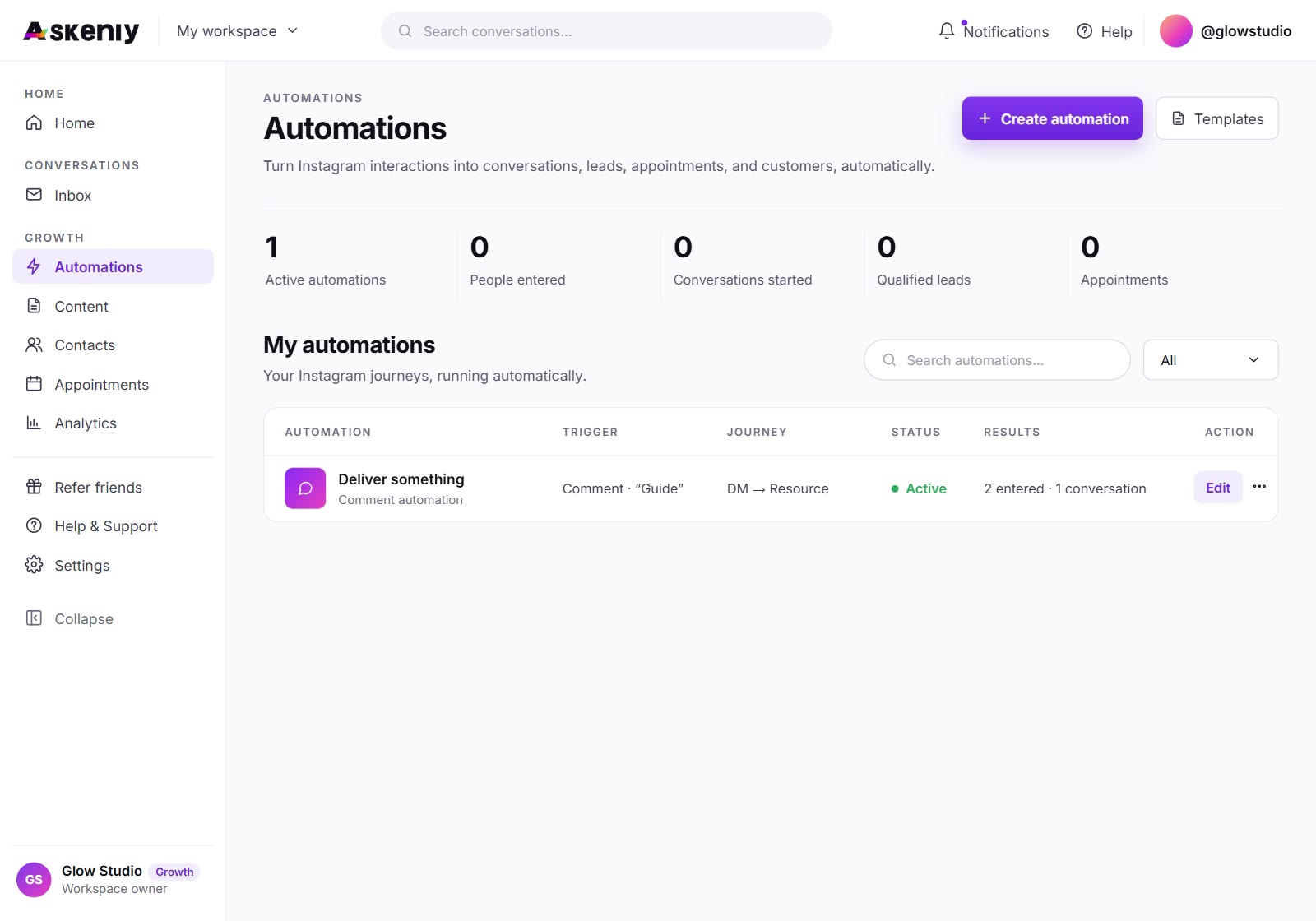
The automation goes live on the posts you chose and appears on the Automations page as Active.
GUIDE
Here’s the free skincare guide you asked for.
Send me the guideEnjoy it. Questions? Just reply here.
Open the guideChoosing where it starts
The trigger decides who gets the DM. Pick the one that matches where people already ask you for things.
| Trigger | Use it when | Example |
|---|---|---|
| Comments on one post | One Reel or post promises something specific | “Comment GUIDE for the checklist” on a single Reel |
| Comments on several posts | A few posts share the same offer | Three Reels in a series, all sending the same guide |
| Comments on any post | A keyword should work everywhere, now and later | PRICE on any post sends your price list |
| Story reply | You run offers or questions in Stories | “Reply LINK and I’ll send it” on today’s Story |
| DM keyword | People message you directly with a word | Someone sends MENU and gets this week’s menu |
Only one automation replies to each comment, so give automations that run on the same posts different keywords.
Keywords that work
A good keyword is short, easy to spell and obviously connected to what people get.
| Business | Keyword | What it sends |
|---|---|---|
| Creator | PRESET | The link to your photo presets |
| Coach | CALL | Your discovery call booking link or three open times |
| Online shop | LINK | The product page from the post |
| Salon | PRICE | Your price list |
| Restaurant | MENU | This week’s menu |
| Course seller | FREE | The free lesson or workbook |
Write messages people actually tap
Keep the opening DM to one or two lines and say what they get. “Here’s the free skincare guide you asked for” works better than a long welcome, because the person has just commented and expects the guide. The button label should finish the sentence in their voice: Send me the guide, Show me the times, Get my code.
The content message can be a little longer. Say what the link is, and invite a reply if they have questions, because a reply opens a conversation you can continue in the Inbox. Keep any second link for later; one clear button gets more taps than three.
Use the same keyword in your caption, in the video and in a pinned comment. Short, distinctive words like GUIDE, PRICE or BOOK get fewer typos than long ones, and adding the common misspellings as extra keywords catches the rest.
Opening DMs for different businesses
Creator
“Here are the presets from today’s Reel.” Button: Send me the presets.
Coach
“Thanks for asking about coaching. Want to see my open times this week?” Button: Show me the times.
Online shop
“Here’s the serum from the post, with every size and price.” Button: Show me the product.
Salon
“Here’s our price list for cuts, colour and treatments.” Button: See prices.
Test it properly
- Comment the keyword from a second Instagram account. Comments from your own account never start an automation.
- Check the DM arrives, then tap the button and confirm the next step appears.
- Open the link from the DM on a phone, outside your own login.
- Open the automation and look at its Activity tab to see the DM recorded.
- If nothing arrives, type the comment into Test a comment in Help → System health. It says which automation would reply, or that none matches.
Your first day
What to check after the automation goes live.
- First hour
Watch the first DMs go out
Open the automation’s Activity tab. Each comment that matched shows the DM sent. Failed sends usually mean Allow access to messages is off.
- Same day
Check the Inbox
Anyone who replied with a question or asked for a person is under Assigned. Answer them yourself; automations pause for that person for 24 hours.
- Next day
Read the numbers
Compare DMs delivered with qualified leads and link clicks. Many DMs and few taps means the opening DM or button label needs to be clearer.
- After a week
Make one change
Try a shorter opening line or a clearer button, or add a follow-up, then compare the next week with this one.
Optional steps
Follow to unlock asks people to follow before the content arrives, after checking with Instagram whether they already do. People who follow skip the ask. Follow-ups send up to 5 more DMs, each with its own message and timer, and only inside Instagram’s 24-hour window. A follow-up is skipped if the person has replied since.
Deliver automations can also hand out unique codes from a list you add, one per person, and count clicks on your link buttons. Email capture belongs to the Get more sales goal, which asks for an address and starts an email sequence.
Each step you switch on appears in the workflow on the automation’s page, with your own text, so you can always see exactly what will be sent.
Common mistakes
- Testing from your own account and assuming the automation is broken.
- A keyword in the caption that differs from the one in the automation, such as GUIDES in the caption and GUIDE in the builder without the plural added.
- A link that needs a login, or opens a desktop-only page.
- An opening DM that’s a long paragraph. People tap short messages.
- Forgetting to choose the post, so the automation runs nowhere.
What to build next
Copy the pattern to your next post with a new keyword, or set one automation on any post so the keyword always works. Then add a second goal: Book an appointment if people ask when you’re free, Answer questions if the same questions come in every day, or Get more sales if you want to follow up by email.
Templates explains each goal, and Automations covers every trigger and step.
Reading the automation’s page
Open the automation from Automations to see what it did. The numbers cover the last 30 days.
| Number | What it tells you |
|---|---|
| DMs delivered | Opening DMs Instagram confirmed. This should rise with every matching comment. |
| Failed sends | Messages Instagram refused. A sudden rise usually means Allow access to messages was turned off, or the account needs reconnecting. |
| Qualified leads | People who tapped a button, passed a follow check or shared an email. Low taps compared with DMs means the opening message needs work. |
| Link clicks | People who opened your link from the DM, counted once per person. Bots aren’t counted. |
| Activity | The latest runs, one line each, so you can check what a particular person received. |
Turn the same idea into other goals
Once the guide automation works, the next ones use the same steps with a different finish.
Book a call instead of sending a link
Choose Book an appointment and pick a service from Appointments. The DM offers three open times, and a reply of 1, 2 or 3 books it.
Collect an email first
Choose Get more sales (Growth and Scale). The DM asks for an email before sending the guide, and a short email sequence follows.
Answer the questions in your comments
Choose Answer questions and save an answer for each common question, such as price, delivery or opening hours.
Grow while you give
Choose Grow your audience to ask for a follow before the guide, and count the followers each Story or post brings in.
Before you publish
A last look takes thirty seconds and saves a lot of confused replies.
- The right Instagram account is picked in the header switcher.
- The posts you chose are the ones whose caption mentions the keyword.
- The preview reads naturally on a phone-sized screen, with no leftover sample words.
- The button labels say what happens next.
- The link opens for someone who isn’t signed in.
- Only switch on Follow to unlock if the follow matters more to you than a few extra taps.
Keeping it running
An automation keeps working on its posts for as long as people comment, so a guide Reel from last year can still bring in leads today. Check its page now and then: a drop in DMs delivered usually just means the post is getting fewer comments, while a rise in failed sends means something needs fixing on the Instagram side.
If Instagram signs Askenly out, for example after a password change, automations stop until you connect again in Settings → Channels. They come back paused, so you can review them before switching them on. Pausing an automation yourself frees its place in your plan without losing anything.
Automation questions
Why didn’t my test comment get a DM?
Check that you commented from another account, that the post is covered by the automation, and that the comment contains the keyword as a whole word. Test a comment in Help → System health tells you whether the keyword matches an active automation.
How many automations can I run?
Free includes 3 live automations, Starter 10, Growth 30, and Scale has no limit.
What happens to automations over my plan’s limit?
They’re saved as paused until you upgrade. Nothing is deleted.
Will the same person get the DM twice?
Each comment that matches starts the automation. Turn on sending only once per person in the automation’s settings if you want one DM per person, however many times they comment.
Can I edit an automation after publishing?
Yes. Open it and choose Manage, or the menu on any workflow step. Changes apply to the next comments; DMs already sent stay as they were.
Does the automation reply publicly too?
It can. Add a short public reply under the comment, so other viewers can see you answered and know to check their DMs.