Appointments
Booking in Askenly runs from Appointments. Once your services and hours are set, Book automations offer real times in the DM, and your booking page uses the same rules. This page covers each setting and what your customers see.
Set it up
Appointments → Booking setup shows a checklist of what’s still missing. Booking opens once every item is ticked.
Add a service
In Services, press Add service. Give it a name and a length. Everything else has a sensible default you can change later.
Set your availability
Your weekly hours, your time zone and any dates you’re away. Times are always worked out in this time zone, wherever the customer is.
Connect a calendar
In Availability, connect Google Calendar (with an optional bookings spreadsheet) or Microsoft Outlook, so busy events block times.
Check customer emails
In Customer emails, read the confirmation and reminders, and turn on the follow-up or no-show email if you want them.
Test it
Press Test booking flow and book a time yourself, as a customer would.
Share it
Create a Book an appointment automation, and copy your booking page link for your bio or Story.
Booking is open. Your booking page and Book automations can offer times.
- Consultation30 min · Online · 15 min break afterLive
- Cut and colour120 min · In person · Approval requiredLive
- Bridal trial90 min · In person · Private link onlyPrivate
Service settings
Each service carries its own rules, so a quick consultation and a long treatment can behave differently.
| Setting | What it does |
|---|---|
| Length | How long the appointment lasts. Times are offered so the whole appointment fits inside your hours. |
| Break before and after | Free time kept around each booking for setup, cleaning or travel. It’s blocked but not shown to the customer. |
| Minimum notice | How soon someone can book. With 12 hours, a 9am slot disappears at 9pm the night before. |
| Booking window | How far ahead people can book, such as the next 30 days. |
| Format | In person, online, phone or at the customer’s location, with your own notes for each, such as an address, arrival instructions or a meeting link. |
| Capacity | How many people can book the same time, for classes or group sessions. |
| Require approval | Bookings arrive as Tentative and get no emails until you confirm them. |
| Reschedule and cancel | Whether customers can change or cancel from their email link, and how many hours before the appointment that closes. |
| Questions | Up to a few questions asked on the booking page, such as hair length or what they’d like to cover. |
| Instructions and policy | Text added to the confirmation email, and your cancellation policy shown before they book. |
| Private | The service is hidden from your booking page and can only be booked from its own link. |
How times are offered in the DM
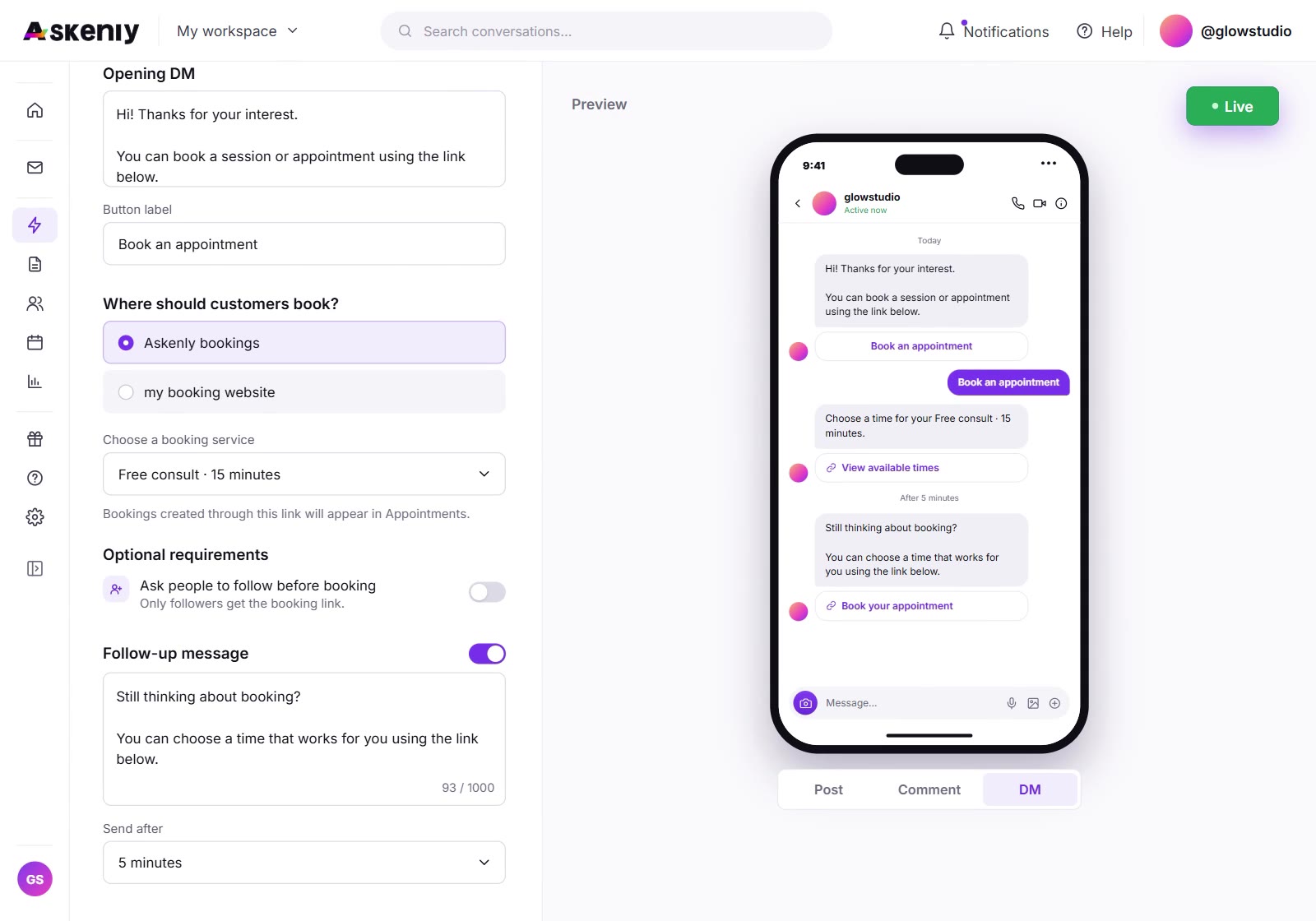
A Book an appointment automation offers the next three open times for the service you chose, worked out from your hours, breaks, notice, booking window, daily maximum, existing bookings and your connected calendar. The person replies 1, 2 or 3 and the time is booked on the spot. Two people can never take the same seat, even if they reply at the same moment.
People can also write what suits them, such as “Tuesday afternoon”, “next week” or “more times”, and get a fresh set of times that match. Once booked, they get the confirmation in the DM and by email, and the booking appears in Your appointments with Instagram DM as its source.
If the automation can’t offer anything, for example because the next weeks are full, the chat is handed to a person in your Inbox instead of leaving the customer with no answer.
Your booking page
Every workspace gets a public booking page that lists your services. Each service also has its own link that opens straight on it, which is handy for a bio link or a Story sticker. The page asks your questions, shows your policy and sends the same confirmation email as a DM booking.
Your appointments shows how many people opened each service’s link and who booked, so you can see which links bring bookings in. Customers manage their own booking from the link in their email: they can reschedule or cancel if the service allows it, up to the cut-off you set.
Customer emails
Each email can be edited or switched off in Appointments → Customer emails. Askenly checks the switch again at the moment of sending.
| When it’s sent | Default | |
|---|---|---|
| Appointment confirmation | Right after booking, or when you confirm a Tentative booking | On |
| Appointment reminder | 24 hours before | On |
| Same-day reminder | 2 hours before | On |
| Rescheduled appointment | When the time changes, from any place | On |
| Follow-up after the visit | An hour after you mark the booking completed | Off |
| No-show follow-up | 15 minutes after you mark the booking as a no-show | Off |
Calendar and spreadsheet sync
Owners and admins can connect Google or Microsoft Outlook in Availability. With Google, Askenly can also create a bookings spreadsheet in your Drive and keep one row per booking. Askenly only gets access to the spreadsheet it creates, not the rest of your Drive.
Every change to a booking, from the DM, the booking page, a customer’s email link or the app, is written to the calendar. Each booking’s detail shows its sync status: Synced, Removed or Failed. Your own busy events block times in Askenly; events Askenly created are never counted twice. If the calendar can’t be reached, Askenly keeps offering times from your hours rather than going quiet.
Managing bookings day to day
Your appointments groups bookings into Today, Upcoming, Needs attention and This month. Open one to see the customer, their answers, its source (Booking page, Instagram DM or Manual) and the emails it has sent so far. You can resend the confirmation from there. Mark it completed or as a no-show when it’s over, which also starts the follow-up email if you turned it on.
New appointment adds a booking by hand, for clients who phone or walk in. Export downloads the filtered list as a CSV file. Contact details are left out unless you ask for them.
Test mode
Test booking flow opens the booking page in Test mode. Bookings you make there are marked test, stay in your browser and are never uploaded, emailed or counted. Use it to check how your services, questions and times look before you share anything.
Booking setup questions
Why is a time not offered?
Booking setup explains each unavailable slot: outside your hours, too little notice, a break, a full day, beyond the booking window or a busy calendar event.
Can I add a price?
No. Booking is always free, with no price or payment step.
Do changes sync to my calendar?
Yes. Every change, from a DM, the booking page, an email link or the app, updates the connected calendar.
Can customers book in their own time zone?
They see times in your availability’s time zone, with the zone named, so nobody books the wrong hour.